
Autoruns for Windows - X 64-bit Download
Popular x64 Tags
- cpu x64 download
- performance x64 download
- windows x64 download
- driver updates x64 download
- driver update x64 download
- cleaner x64 download
- defrag x64 download
- system x64 download
- drivers update x64 download
- tune x64 download
- tweak x64 download
- registry cleaner x64 download
- security x64 download
- video driver update x64 download
- optimizer x64 download
- registry x64 download
- uninstall x64 download
- speed x64 download
- boost x64 download
- faster x64 download
- system utilities x64 download
- utility x64 download
- optimize x64 download
- driver update software x64 download
- startup x64 download
- disk cleaner x64 download
- clean disk x64 download
- clean x64 download
- vista x64 download
- disk x64 download
Autoruns for Windows 14.11
Sponsored links:

Microsoft

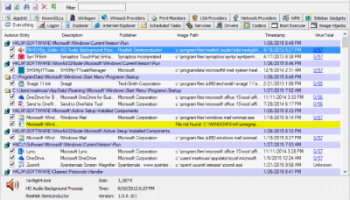
This utility, which has the most comprehensive knowledge of auto-starting locations of any startup monitor, shows you what programs are configured to run during system bootup or login, and shows you the entries in the order Windows processes them. These programs include ones in your startup folder, Run, RunOnce, and other Registry keys. You can configure Autoruns to show other locations, including Explorer shell extensions, toolbars, browser helper objects, Winlogon notifications, auto-start services, and much more. Autoruns goes way beyond the MSConfig utility bundled with Windows Me and XP.
Autoruns' Hide Signed Microsoft Entries option helps you to zoom in on third-party auto-starting images that have been added to your system and it has support for looking at the auto-starting images configured for other accounts configured on a system. Also included in the download package is a command-line equivalent that can output in CSV format, Autorunsc.
You'll probably be surprised at how many executables are launched automatically!
Autorunsc Usage
Autorunsc is the command-line version of Autoruns. Its usage syntax is:
Usage: autorunsc [-a] | [-c] [-b] [-d] [-e] [-g] [-h] [-i] [-l] [-m] [-n] [-p] [-r] [-s] [-v] [-w] [-x] [user]
-a Show all entries.
-b Boot execute.
-c Print output as CSV.
-d Appinit DLLs.
-e Explorer addons.
-g Sidebar gadgets (Vista and higher).
-h Image hijacks.
-i Internet Explorer addons.
-l Logon startups (this is the default).
-m Hide signed Microsoft entries.
-n Winsock protocol and network providers.
-p Printer monitor drivers.
-r LSA providers.
-s Autostart services and non-disabled drivers.
-t Scheduled tasks.
-v Verify digital signatures.
-w Winlogon entries.
-x Print output as XML.
user Specifies the name of the user account for which autorun items will be shown.
Usage
See the November 2004 issue of Windows IT Pro Magazine for Mark's article that covers advanced usage of Autoruns . If you have questions or problems, visit the Sysinternals Autoruns Forum.
Simply run Autoruns and it shows you the currently configured auto-start applications as well as the full list of Registry and file system locations available for auto-start configuration. Autostart locations displayed by Autoruns include logon entries, Explorer add-ons, Internet Explorer add-ons including Browser Helper Objects (BHOs), Appinit DLLs, image hijacks, boot execute images, Winlogon notification DLLs, Windows Services and Winsock Layered Service Providers. Switch tabs to view autostarts from different categories.
To view the properties of an executable configured to run automatically, select it and use the Properties menu item or toolbar button. If Process Explorer is running and there is an active process executing the selected executable then the Process Explorer menu item in the Entry menu will open the process properties dialog box for the process executing the selected image.
Navigate to the Registry or file system location displayed or the configuration of an auto-start item by selecting the item and using the Jump menu item or toolbar button.
To disable an auto-start entry uncheck its check box. To delete an auto-start configuration entry use the Delete menu item or toolbar button.
Select entries in the User menu to view auto-starting images for different user accounts.
More information on display options and additional information is available in the on-line help.
Autoruns' Hide Signed Microsoft Entries option helps you to zoom in on third-party auto-starting images that have been added to your system and it has support for looking at the auto-starting images configured for other accounts configured on a system. Also included in the download package is a command-line equivalent that can output in CSV format, Autorunsc.
You'll probably be surprised at how many executables are launched automatically!
Autorunsc Usage
Autorunsc is the command-line version of Autoruns. Its usage syntax is:
Usage: autorunsc [-a] | [-c] [-b] [-d] [-e] [-g] [-h] [-i] [-l] [-m] [-n] [-p] [-r] [-s] [-v] [-w] [-x] [user]
-a Show all entries.
-b Boot execute.
-c Print output as CSV.
-d Appinit DLLs.
-e Explorer addons.
-g Sidebar gadgets (Vista and higher).
-h Image hijacks.
-i Internet Explorer addons.
-l Logon startups (this is the default).
-m Hide signed Microsoft entries.
-n Winsock protocol and network providers.
-p Printer monitor drivers.
-r LSA providers.
-s Autostart services and non-disabled drivers.
-t Scheduled tasks.
-v Verify digital signatures.
-w Winlogon entries.
-x Print output as XML.
user Specifies the name of the user account for which autorun items will be shown.
Usage
See the November 2004 issue of Windows IT Pro Magazine for Mark's article that covers advanced usage of Autoruns . If you have questions or problems, visit the Sysinternals Autoruns Forum.
Simply run Autoruns and it shows you the currently configured auto-start applications as well as the full list of Registry and file system locations available for auto-start configuration. Autostart locations displayed by Autoruns include logon entries, Explorer add-ons, Internet Explorer add-ons including Browser Helper Objects (BHOs), Appinit DLLs, image hijacks, boot execute images, Winlogon notification DLLs, Windows Services and Winsock Layered Service Providers. Switch tabs to view autostarts from different categories.
To view the properties of an executable configured to run automatically, select it and use the Properties menu item or toolbar button. If Process Explorer is running and there is an active process executing the selected executable then the Process Explorer menu item in the Entry menu will open the process properties dialog box for the process executing the selected image.
Navigate to the Registry or file system location displayed or the configuration of an auto-start item by selecting the item and using the Jump menu item or toolbar button.
To disable an auto-start entry uncheck its check box. To delete an auto-start configuration entry use the Delete menu item or toolbar button.
Select entries in the User menu to view auto-starting images for different user accounts.
More information on display options and additional information is available in the on-line help.
OS: Windows XP, Windows Vista, Windows Vista x64, Windows 7, Windows 7 x64, Windows 8, Windows 8 x64, Windows 10, Windows 10 x64, Windows 11
Add Your Review or 64-bit Compatibility Report
Top System Maintenance 64-bit downloads


Windows 7 Service Pack 1 7601.17514.1011
SP1 - all previously publicly released updates for Windows 7 and Server 2008 R2
Freeware

XtraTools Home x64 26.3.1

XtraTools increases productivity and makes working with MS Windows easier.
Shareware | $24.99


WinToUSB 10.5 Build January 2
Easily create bootable USB drives from Windows installations with WinToUSB.
Shareware | $29.95

Lenovo Legion Toolkit 2.33.0.0
Optimize your Lenovo Legion experience with this powerful toolkit.
Open Source


FastFolders 5.14.2
Quickly access folders and files with customizable shortcuts and menus.
Trialware | $15.00

Advanced Uninstaller PRO 13.28.0.69
Effortlessly remove unwanted software and optimize your PC with Advanced Uninstaller PRO.
Trialware | $9.10

RAM Saver Pro 26.3.1
Easy-to-use RAM optimizer tool that will keep your computer running faster.
Shareware | $29.99
tags: rambooster, ram, memorybooster, memory, ramsaver, ramsaverpro, booster, tweaker, tool, tools, utilities, optimizer, optimiser
Members area
Top 64-bit Downloads
-
O&O DiskRecovery x64 14.0.17
x64 demo download -
O&O DiskRecovery
Admin Edition x64 10.0 B117
x64 demo download -
XtraTools Home x64 26.3.1
x64 shareware download -
Processor X32 or X64 1.5
x64 freeware download -
EasyTune6 B24.0119.1
x64 freeware download -
O&O DiskImage
Professional x64 19.0.109
x64 trialware download -
O&O DiskImage
Professional x64 19.0.109
x64 trialware download -
O&O CleverCache
Professional Edition x64 7.1.2737
x64 trialware download -
AkelPad (x64 bit) 4.9.8
x64 open source download -
O&O Defrag
Professional Edition x64 28.0.10005
x64 trialware download
Top Downloads
-
Copy Outlook Express to
Windows Live Mail 3.54
shareware download -
File Checksum Tool 1.41
freeware download -
Outlook Emails to PDF 1.2
shareware download -
NoClone Home Edition 2014 6.1.45.0
trialware download -
Convert Yahoo Email to
PDF 2.1
shareware download -
OST Export to PST 2.2
shareware download -
EML File Converter 21.4
shareware download -
SoftTweak OST to PST 3.1
shareware download -
iTop PDF 3.6.0.4
freeware download -
SharpBoot 5.0
freeware download -
O&O DiskRecovery x64 14.0.17
demo download -
O&O DiskRecovery
Admin Edition x64 10.0 B117
demo download -
Image 4.01
trialware download -
O&O DiskImage
Professional x64 19.0.109
trialware download -
O&O DiskImage
Professional x64 19.0.109
trialware download